Creating New Clients
Only Account Owners can create new clients. If the Create New Client button is disabled, you don't have the required access:
- KAM/AE: if you believe you should be an Account Owner, reach out in #platform-requests-channel to update your access.
- Non-KAM/AE: ask the relevant KAM/AE on the account to create the client on your behalf.
You'll find the Create New Client button on the Admin Dashboard home page:
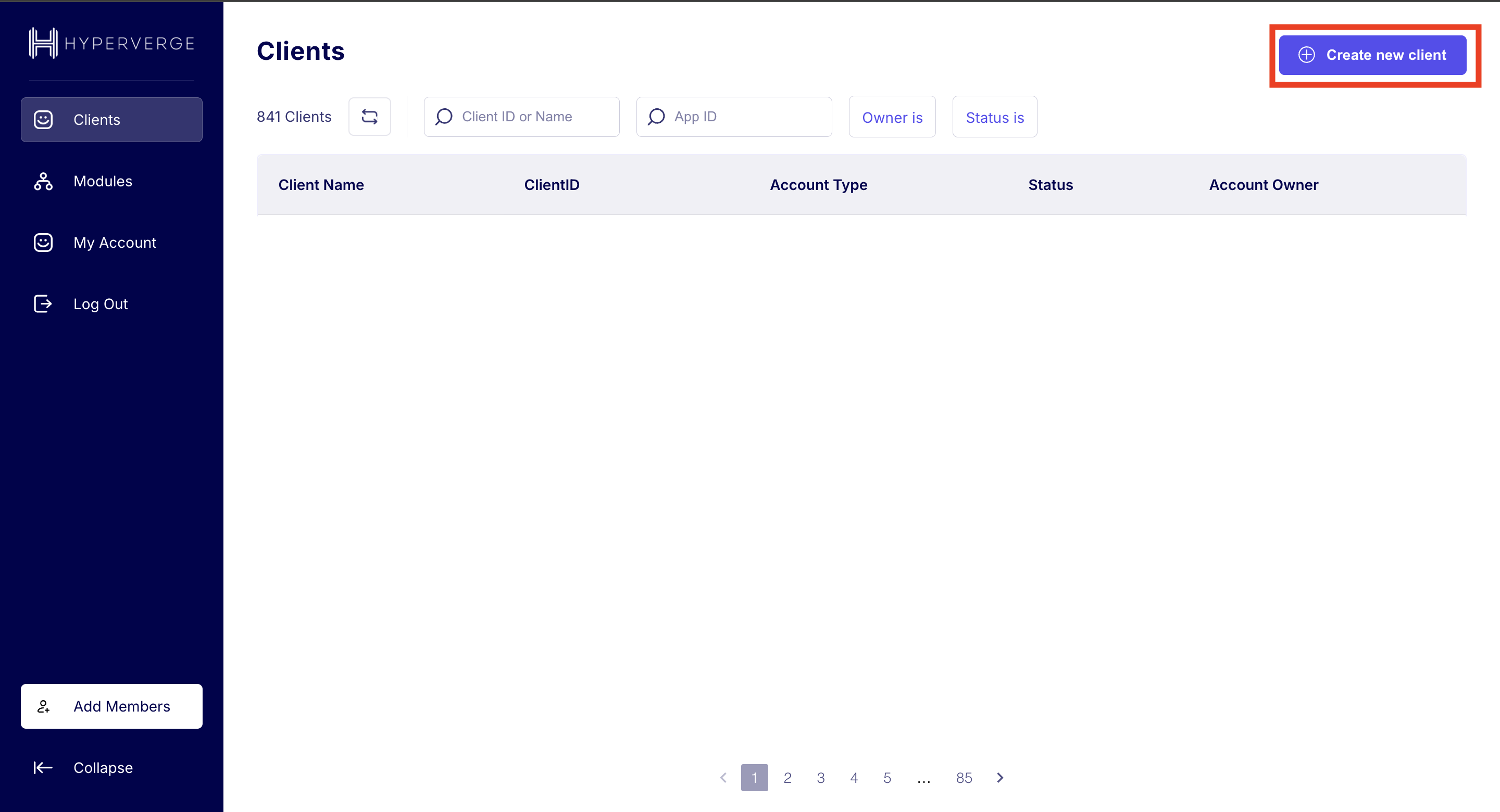
Clicking it opens this modal:
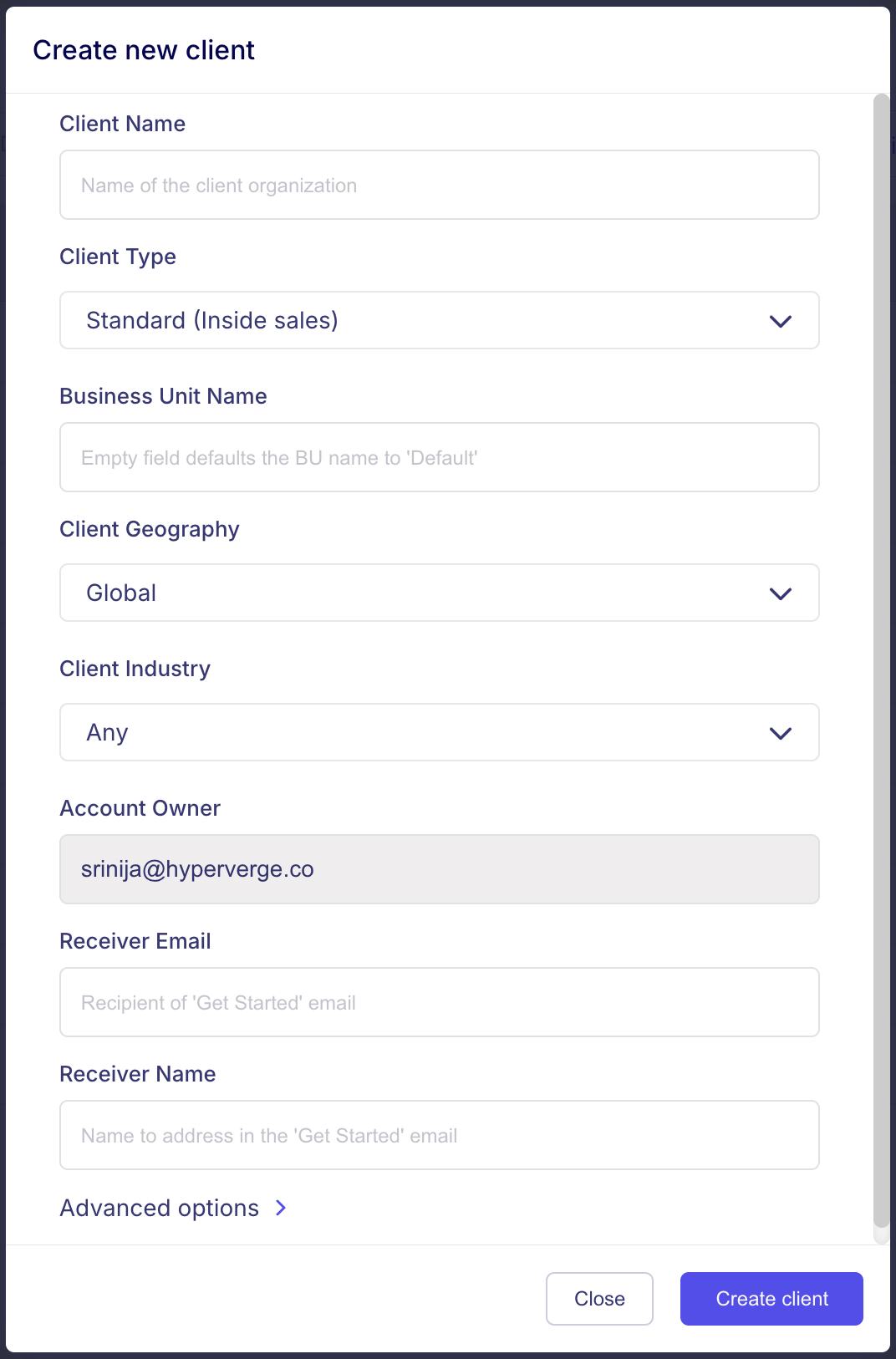
Field reference
| Field | What to enter |
|---|---|
| Client Name | A user-readable name (not necessarily the official business name) — e.g., Kapitus, Hero Fincorp. Prefer camelCase. Cannot contain special characters. |
| Client Type | Set to Enterprise for enterprise clients. Otherwise leave the default. |
| Business Unit Name | If the client already needs multiple BUs, enter the name of the first one. Otherwise leave empty — it defaults to Default. |
| Client Geography | Country the client is contracted and billed from. Even if they'll launch in multiple countries, pick the one tied to billing & contract. |
| Client Industry | Select from the dropdown. If nothing fits, pick Any for now. |
| Account Owner | Auto-populated with your email. Not editable. |
| Receiver Email | Email of the person who should receive the HyperVerge "Get Started" email. This person is auto-added as the client's first user with admin access. |
| Receiver Name | Name used to address the recipient in the "Get Started" email. |
Advanced Options
Expand the Advanced Options toggle. This section contains:
- An Authorized Products dropdown — set which products the client is authorized for:
- HVOne Dashboard — required for all clients.
- video kyc — select only if the client needs Video KYC. Otherwise select HVOne Dashboard only.
- Two other configs at the same level — ignore both; leave them at their defaults.
Click Create Client to finish. The receiver will get a "Get Started" email inviting them to set up their account.
Related
- Admin Dashboard Guide — user roles, account status, updating client details, HyperStart contract checks.