Admin Dashboard - Guide
The Admin Dashboard is an internal platform for client & module management. Access Admin Dashboard
Access & User Management
Inviting new users
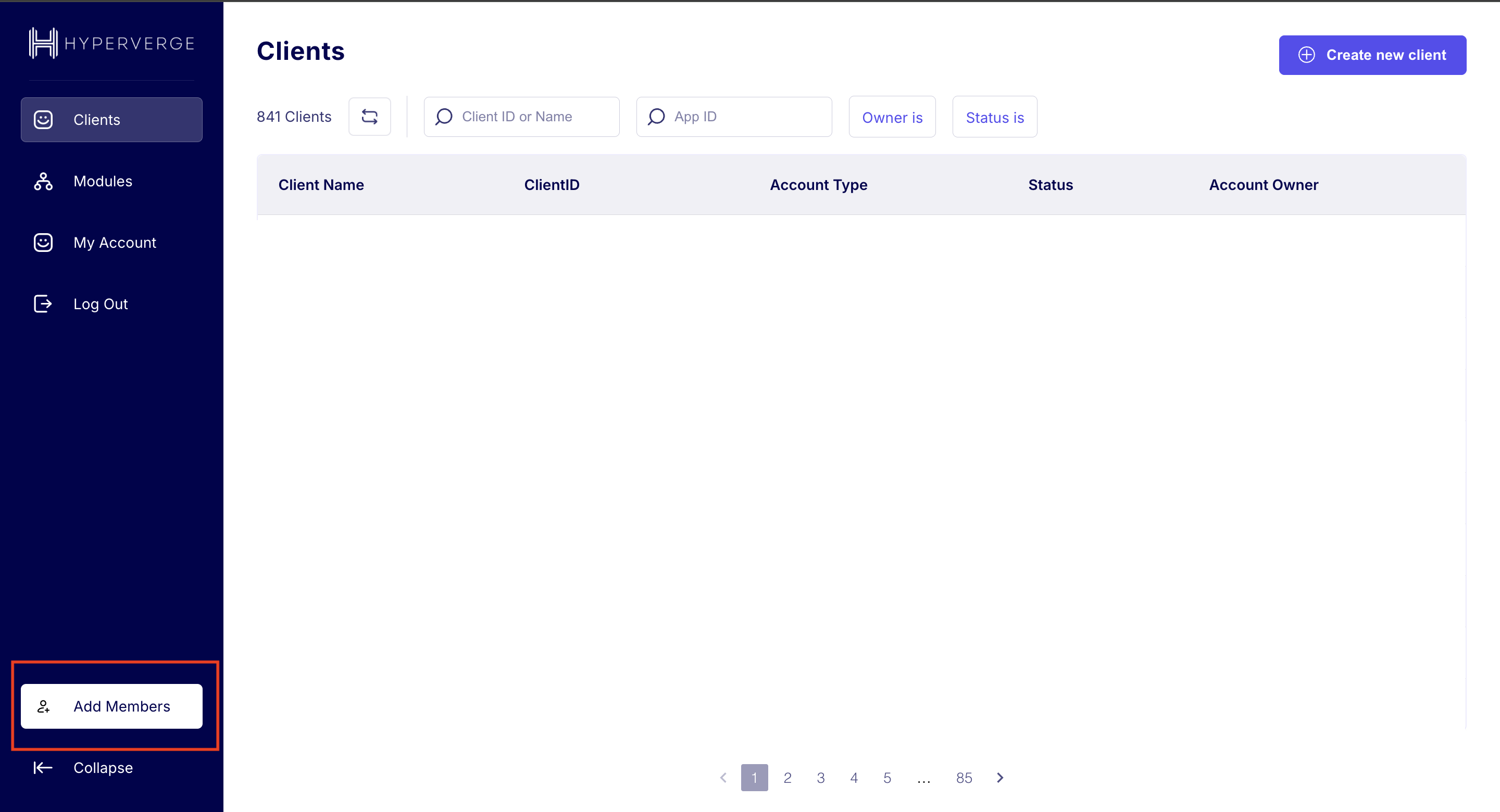
- Reach out to the dashboard admin to get added.
- While requesting access, specify your role:
- User: View-only access to all clients and modules.
- Account Owner: View-only access + ability to create new clients and update details of assigned clients.
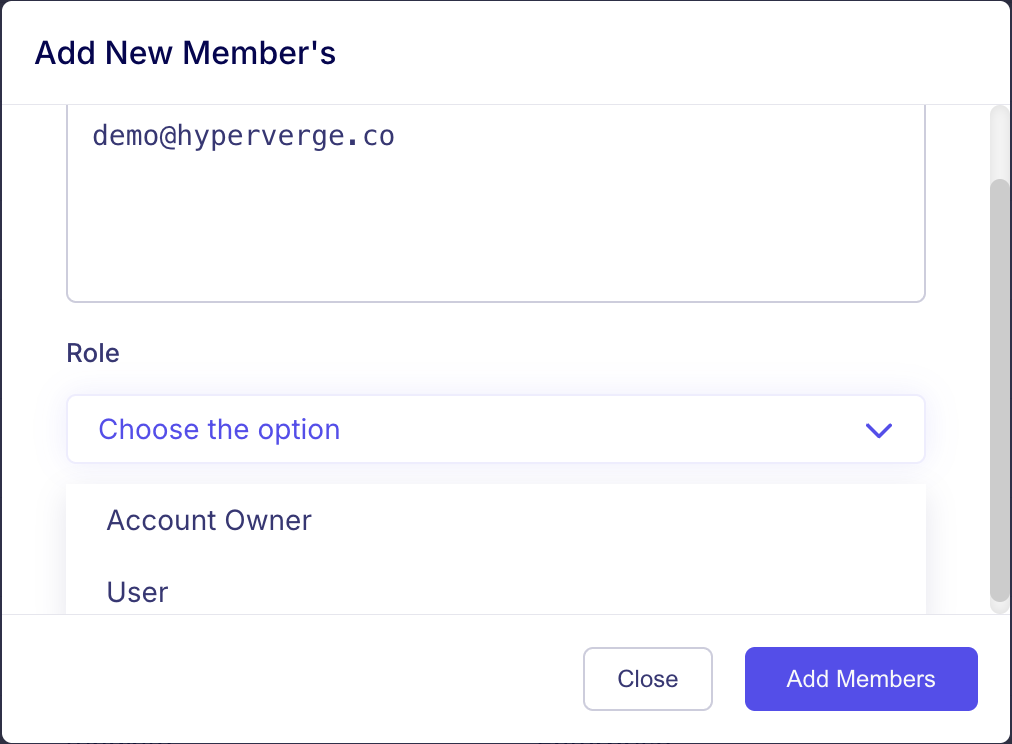
- Members of the Sales/KAM Team should be assigned the Account Owner role.
- Only emails with
@hyperverge.codomain can be added to Admin Dashboard.
Special user roles
superAdminList: Full unrestricted access across dashboardsuperAdminListForModules: Full access to the Modules tab (add, edit, modify)productManagersList: Create and edit modules they ownadminListToInviteUsers: Can invite new users
To request a special role, reach out to the dashboard admin with the role name and purpose. A user can have multiple roles.
Client Management
Creating new clients
Only Account Owners can create new clients. For the full walkthrough (field-by-field reference, advanced options, and access troubleshooting), see Creating New Clients.
Understanding Account Status
| Account Status | Description | Additional Notes |
|---|---|---|
| Trial | Time-bound access (staging credentials). Auto-expires in 15 days unless extended. | Account Owner can extend trial period through the Dashboard. |
| Active | Manual upgrade from Trial. Unrestricted staging access, no expiry. | Risk: Clients may go live without contracts on staging credentials. |
| Live | Auto-updated when first production credentials are created. | Status cannot be updated manually once live. |
| Inactive | All staging & production credentials disabled. Not shown by default. | To deactivate: raise a request in #process-disable-credentials. Use filters to view inactive accounts. |
Updating details on Admin Dashboard
Only the Account Owner has access to modify details.
Client Details:
- Client Name, Account Owner, Billing Type, Currency, Account Status
Pricing Details:
- Module Pricing, Platform Pricing, Minimum Monthly Commitment
Invoicing Details:
- You can link a Zoho ID to the Client ID on Admin Dashboard → Invoices Tab
- Each client can have multiple invoices (configurable at BU-level — not directly from the dashboard)
API: Update Zoho ID for all BUs of a client
Endpoint: PUT https://self-serve-portal.hyperverge.co/api/v2/internal/company/business/unit/bulk
Headers:
Content-Type: application/jsonappId: <appId>appKey: <appKey>
Request Body:
{
  "clientId": "",
  "zohoId": "",
  "zohoName": ""
}
Response: Status Code 200 on success.
API: Update Zoho ID for a single BU
Endpoint: PUT https://self-serve-portal.hyperverge.co/api/v2/internal/company/business/unit
Headers:
Content-Type: application/jsonappId: <appId>appKey: <appKey>
Request Body:
{
  "clientId": "",
  "BUID": "",
  "zohoId": "",
  "zohoName": ""
}
Response: Status Code 200 on success.
HyperStart Contracts & Admin Dashboard
- Before production credential creation, HyperStart contract repository is checked for a valid contract against the Client ID.
- Common mistakes even when a contract exists:
- Client ID on HyperStart does not match Admin Dashboard
- Client ID on HyperStart has extra whitespace
- Limitation: The check only validates presence of a Client ID on HyperStart — expired contracts still pass, and NDAs are accepted (not just MSA/Order Forms).
API: Check for a valid contract on HyperStart
Endpoint: POST https://clm-backend.hyperstart.com/api/v1/annotation/checkAnnotationValueByOrg
Headers:
Content-Type: application/jsonx-api-key: <api-key>userid: <userid>
Request Body:
{
  "orgId": "6453c7eb8bb1591a773018ad",
  "key": "Workflow Client ID",
  "value": "client_id_to_search"
}
Responses:
200— Client ID exists on HyperStart404— Client ID does not exist403— Authentication failed
Module Management
See Managing Modules on Admin Dashboard for details.