Accessing API Responses
Overview
This document explains how to access API responses of Output API and individual APIs from the Application Details View (Case Management) on HVOne dashboard.
Purpose: Help SA/IE/Support or anyone debugging a client application understand the raw API responses used to populate data on Case Management, Outputs API & Results API.
Prerequisites
Basic knowledge of how to access and understand applications on HVOne dashboard.
Step-by-Step Guide
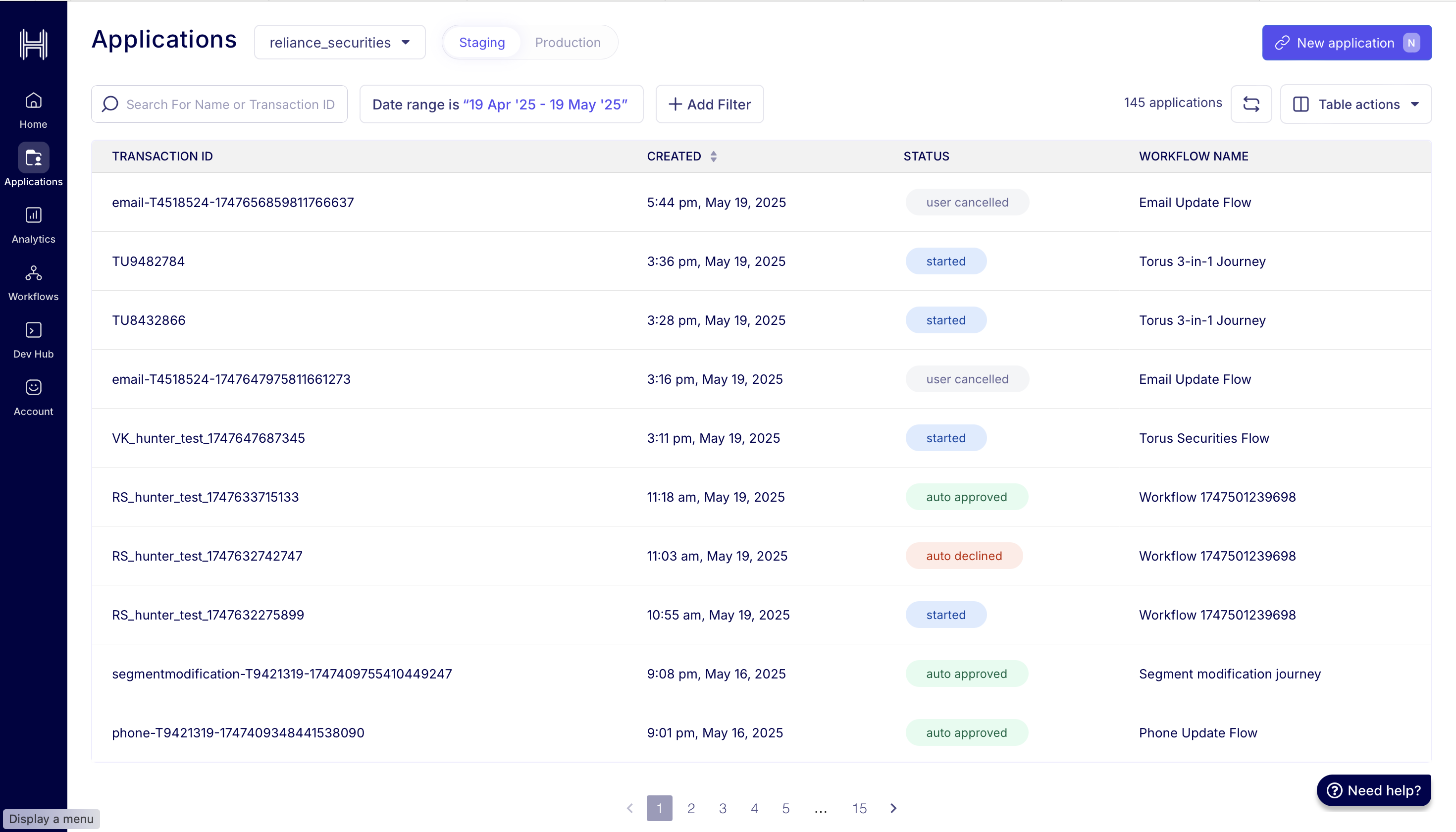
1. Select the application
On the 'Applications table' view page on HVOne dashboard, select the application you want to inspect.
2. View Finish Transaction Payload
Click on 'View Finish Transaction Payload' button in the 'Application Details' card.
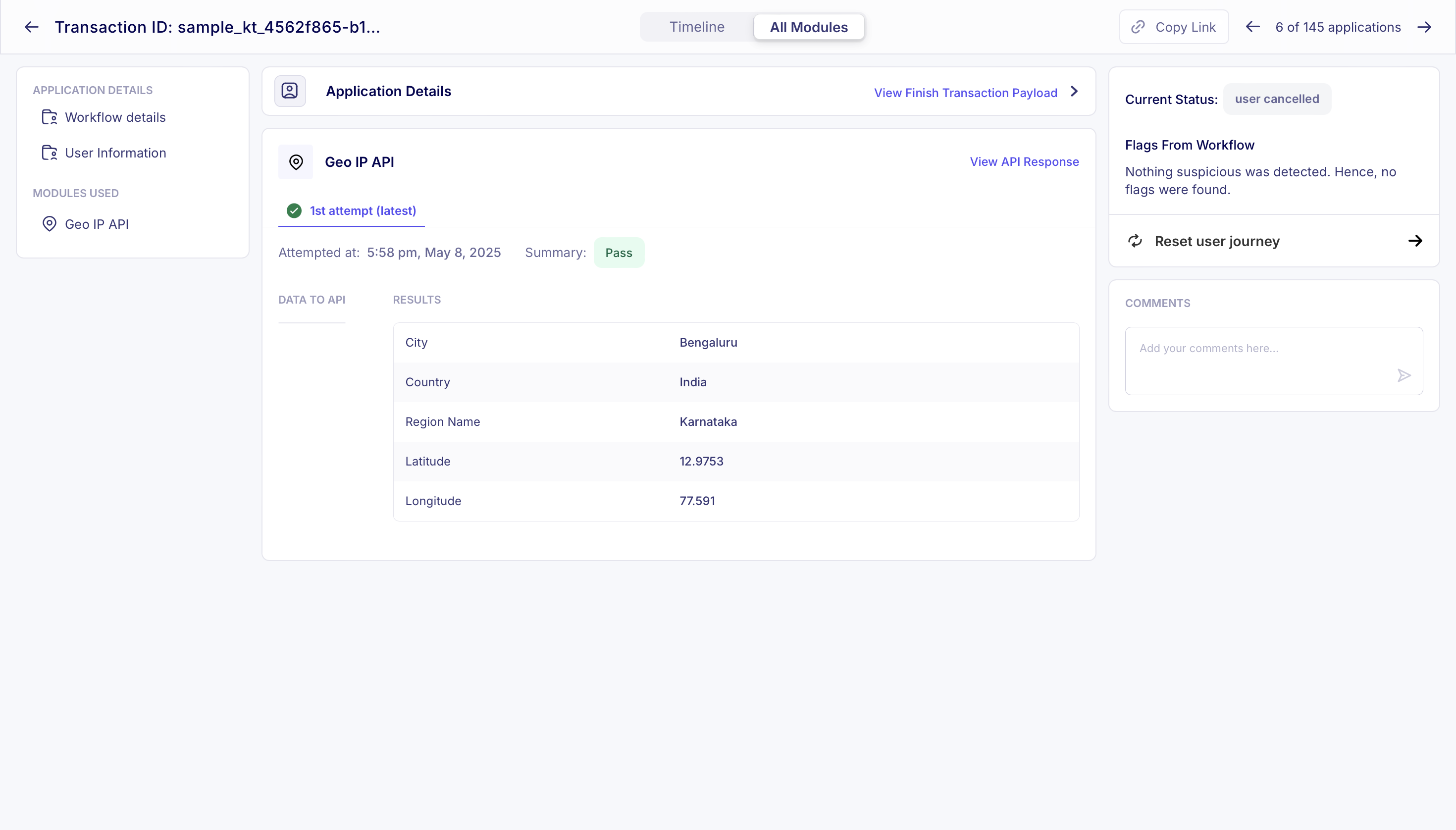
This opens a popup with the entire finish transaction payload. The data returned to clients in the Outputs API is a subset of this payload.
3. View Individual API Responses
Click on 'View API Response' corresponding to any of the API cards. This opens a popup with the API response for the selected attempt.
This feature is only visible to HyperVerge employees. Clients will not see the 'View Finish Transaction Payload' or 'View API Response' buttons.